Hello again,
In Delta’s DOP series HMI is possible to change the default screen that is shown at HMI when power ON. If users want to show a custom image, logo, etc. just by following few and simple steps this is now possible through “Power on screen” settings:
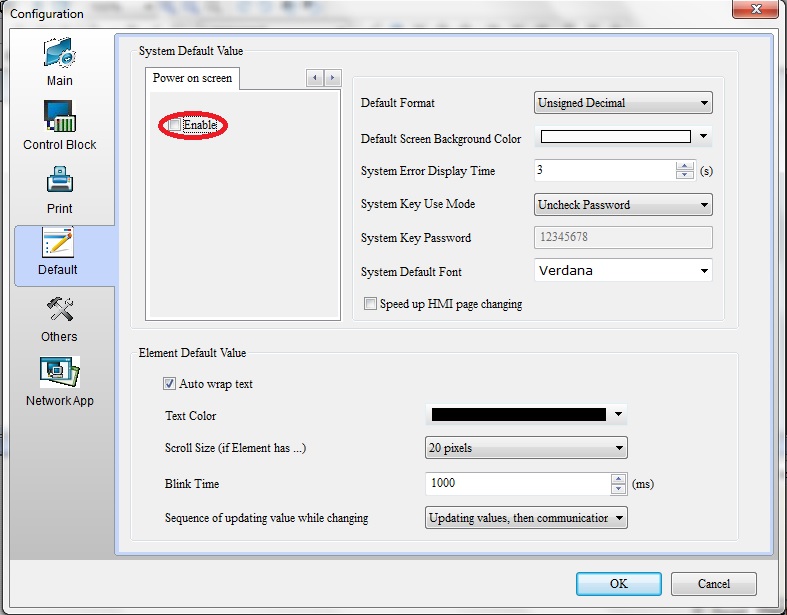
1. On the menu go to: Options> Configuration>Default , select “Power on screen” tab and click “Enable”
2. Click “Open File” and select the desired image file (bmp ; jpg ; gif ; ico ; png)
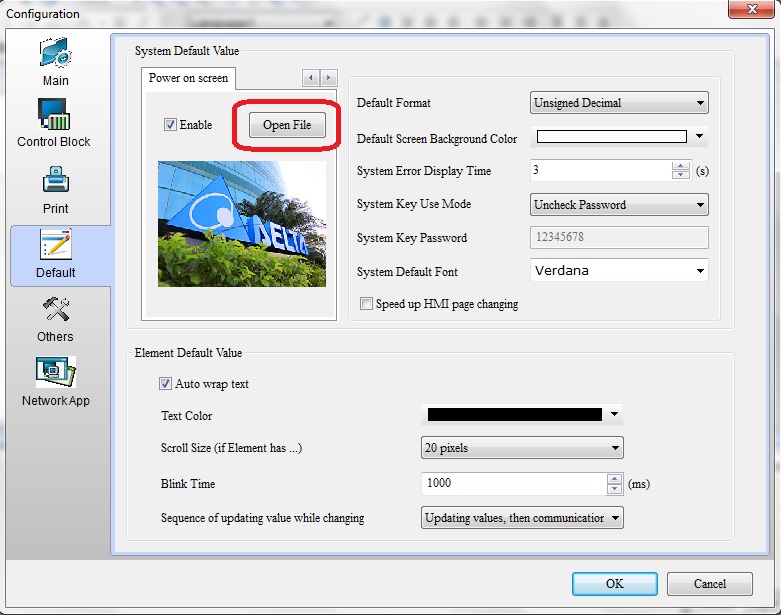
3. After enabling the power on screen option and selecting the desired file, users can use two possible options to activate the power on screen:
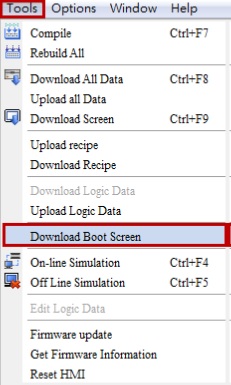
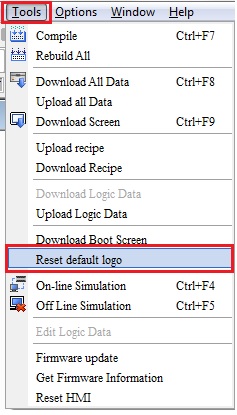
– Tools>Download Boot Screen (to change boot screen)
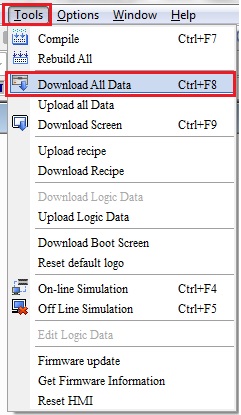
– Tools>Download All Data (to download boot screen directly)
4. After downloading the boot screen, the HMI has to be restarted
5. If users want to restore the default logo, this is possible by selecting Tools> Reset default logo and restarting the HMI
Important : Power on Screen function is not supported on the following model types: B04S211, B05S100, B05S101, B07S201, B07S211.
Hope you enjoy this feature with our DOP-B and DOP-W series HMI.
Good luck !
 Delta Industrial Automation EMEA