

Delta HMI can communicate with numerous brand of controller/PLC which are Itemized below:
Allen Bradley PLC Cimon PLC, Copley, Danfoss , Emerson, Facon, Festo, FuFeng, Fuji, GE Fanuc, Hitachi, HUST, IDEC, Jetter, Keyence, Koyo, Lenze, LG, LIYAN, M2i, Matsushita, Mirle, Mitsubishi, MKS, Modbus, Modicon, Moeller, NIKKI, Omron, Parker, RKC, Siemens, Taian, Toshiba, Vigor, VIPA, YOKOGAWA
you can configure the HMI for serial or Ethernet communication with 3rd party controller/PLC
- serial communication setting
To configure the HMI for serial communication with the controller, in DOPSoft, go to [Options] [Communication Setting]to configure select the COM Port of the HMI (C OM1, COM2,COM 3 ) that you are using for the communication, select the brand of the PLC( manufacturer), select the series of the controller and set the communication parameters( Data Bits, Stop Bits, Baud Rate and Parity)
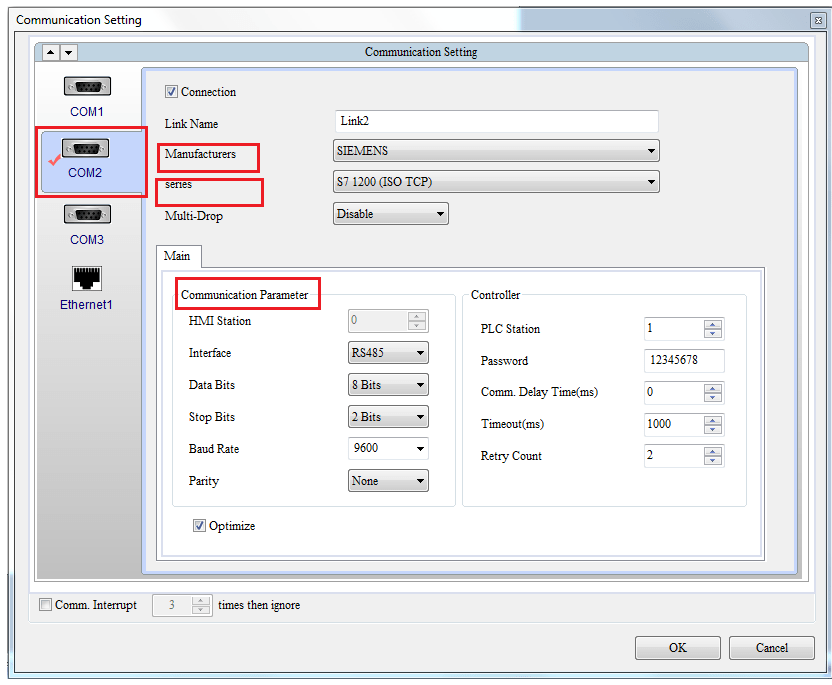
serial communication setting interface
The following are detailed descriptions for the settings of communication parameters and controller of COM 1, COM 2, and COM 3 as shown in the figure above
- Connection: means to enable COM port for communication. The user can choose which COM port to be enabled, such as COM 1, COM 2, or COM 3. Only when [Connection] is checked can the user configure the associated [Link Name] and choose the [series] (i.e., PLC) to use.
- Communication Parameter
HMI Station: To set HMI Station Number, with a range of 1 ~ 255 and a default station number of 0.
Interface: The interface is the method of transmission, it includes RS232, RS422, and RS485.
2. Ethernet communication setting
To configure the HMI for Ethernet communication with the controller, in DOPSoft, go to [Options] [Communication Setting] select he Ethernet Port, create the Ethernet link and set the Ethernet network communication parameters ssociated Ethernet the parameters
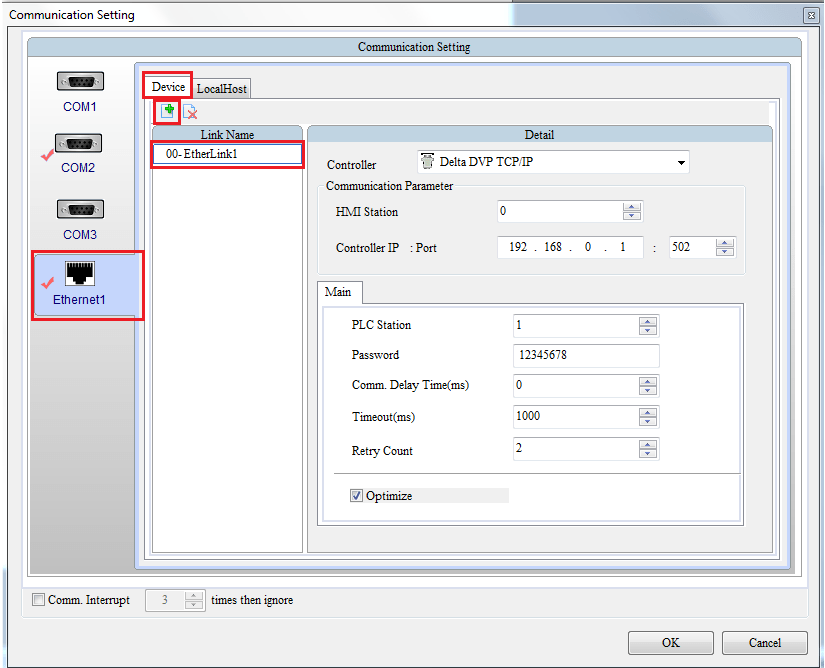
Ethernet Communication Setting interface
The following are details of setting for Ethernet communication as show in figure above.
- Device: when Click the icon in [Device] page, a new [EtherLink1] link device will be
added, which can be renamed by the user as preferred. After the new Ethernet device link is added, then select the controller to use.
HMI Station
This feature allows one to set HMI Station number, with a range of 1 ~ 255 and default of 0
Controller IP: The user can set the IP address of PLC here. Please set the address that is located in the same network segment as HMI IP to ensure normal communication with HMI.
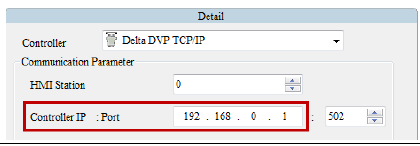
Port: Port will vary with the controller selected by the user. The user can also change the port as preferred and the port setting of the associated PLC Controller.
PLC Station: PLC Station refers to that the software automatically creates a station for the associated PLC for the user after the user selects the controller to use. The user can change the default station, with a range of 0 ~ 255.
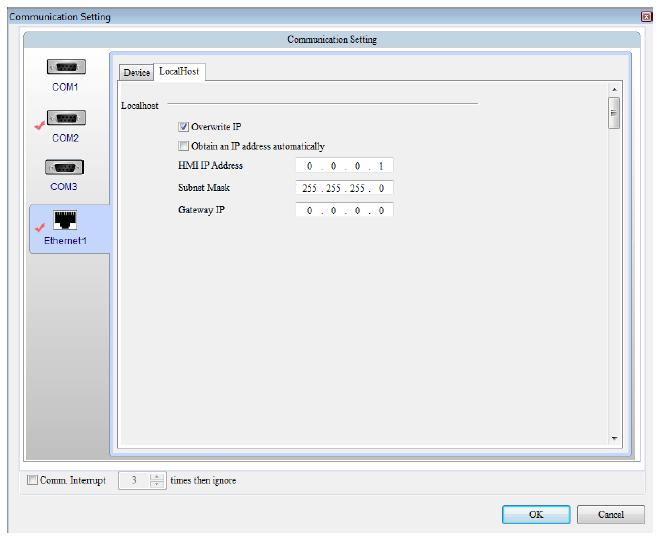
- Local Host Overwrite IP
LocalHost stands for the IP address of HMI, with options of Overwrite IP and Obtain an IP address automatically.
Overwrite IP
If Overwrite IP is checked, it means the IP is changed from software. The user can configure the IP address to write in and associated parameters such as HMI name
Obtain an IP address automatically: [Overwrite IP] must first be checked before [Obtain an IP address automatically] can be opened. When both are checked, it means HMI will obtain IP address through DHCP. If the user wants to know the current IP address, he/she can check through [System Setting] [Network]in the system screen.
HMI IP address: The HMI IP address must be located in the same network segment as the controller IP address. ( set the Subnet Mask and Gateway according to Ethernet/TCP IP protocol.
 Delta Industrial Automation EMEA